Always Allowed Apps
By default, the LivingRoom app blocks all apps and only unblocks them when the screen is being recorded. (Don't worry, you can still make and receive calls with the Phone app at all times!) Parents can exempt highly trusted apps from the screen recording requirement.
The LivingRoom app blocks apps using two methods at the same time:
- Disabling the app so that it can't be opened
- Blocking the app's internet access
- Internet Always Allowed Apps (in the LivingRoom parents dashboard website)
- Always-Allowed Apps (in the LivingRoom app on your child's device)
Note about Apps with In-App Browsers (Webviews)
Apps that use webviews and embedded browsers may still be partially blocked, even if set to Always Allowed. This is intentional — it closes a significant loophole where a parent allows a safe app (like the Bible app), but a child uses the app's built-in browser to access the web without any monitoring or nudity detection.
If part of an Always Allowed app is blocked, it is likely using an in-app browser or embedded webview. To access the blocked portion:
- Start screen recording in LivingRoom
- Close the app completely
- Reopen the app
Note about Web Browsers
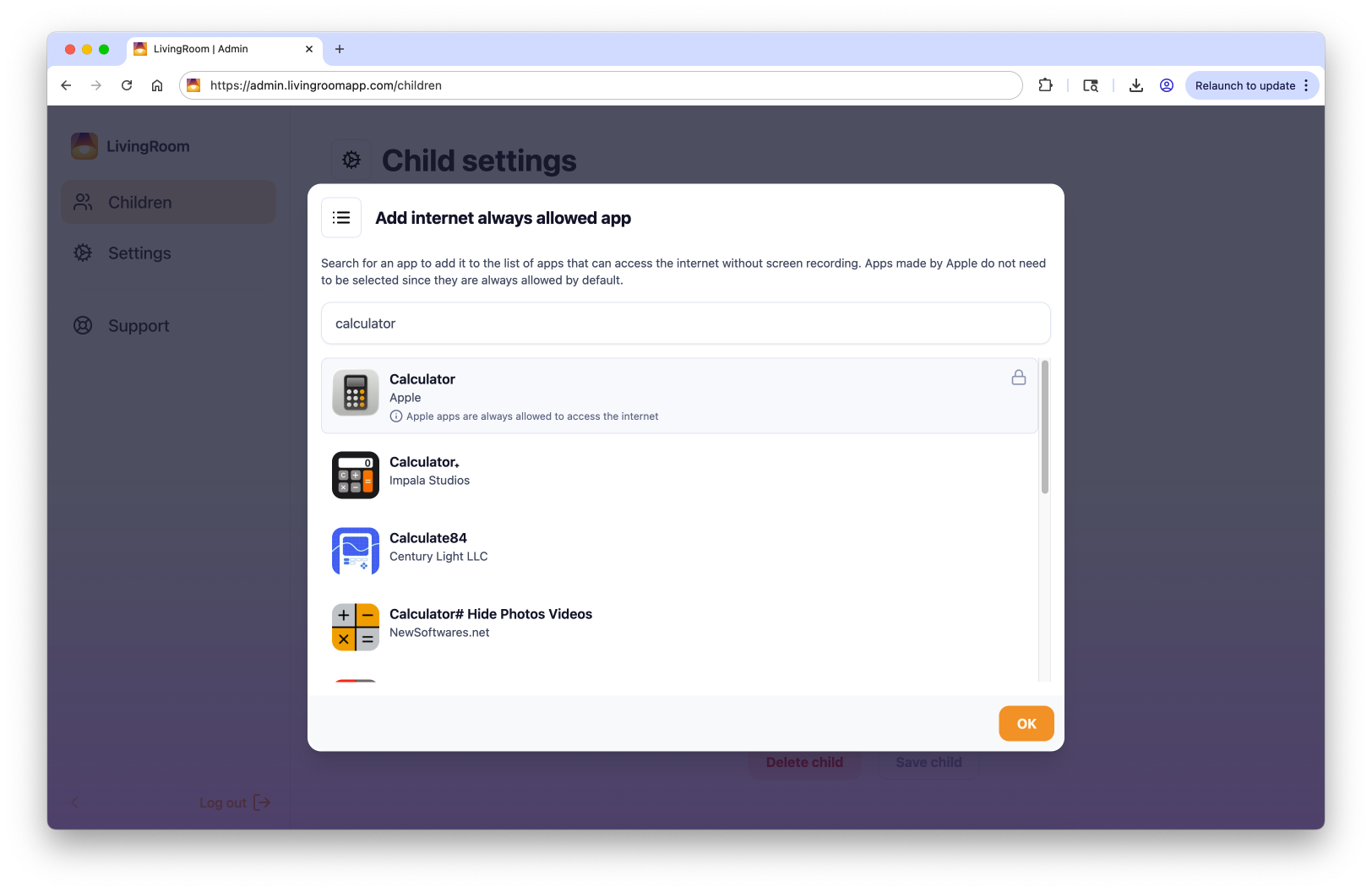
Web browsers can't be exempted from screen recording, even if you add them to Always Allowed. This includes Safari, Chrome, Firefox, Microsoft Edge, Brave, Opera, and DuckDuckGo. If you select a browser in the app picker, LivingRoom will still require screen recording before it can be used.
Browsers are the highest-risk apps on a device because they could provide access to anything on the internet.
Note about Streaming Apps with Copyright Protection
Some streaming apps like Disney+, Netflix use HDCP (High-bandwidth Digital Content Protection) to prevent screen recording of copyright protected content. When screen recording is active, these apps will either show a black screen or refuse to play content.
If you want to use apps like Disney+ and Netflix, they must be added to both Always-Allowed lists.
Good news: Not all streaming apps have this restriction! Apps like YouTube and Spotify do not have the same level of HDCP copyright protection and are OK to monitor via recording.
Best practice: Try using the streaming app with recording first. Only add it to the Always Allowed Lists if it fails to work properly.
Note about Venmo
The Venmo app must be added to the Always Allowed lists as well.
Step 1: Add an app to Internet Always Allowed Apps
In the LivingRoom parents dashboard, go to the Children section and then select settings.
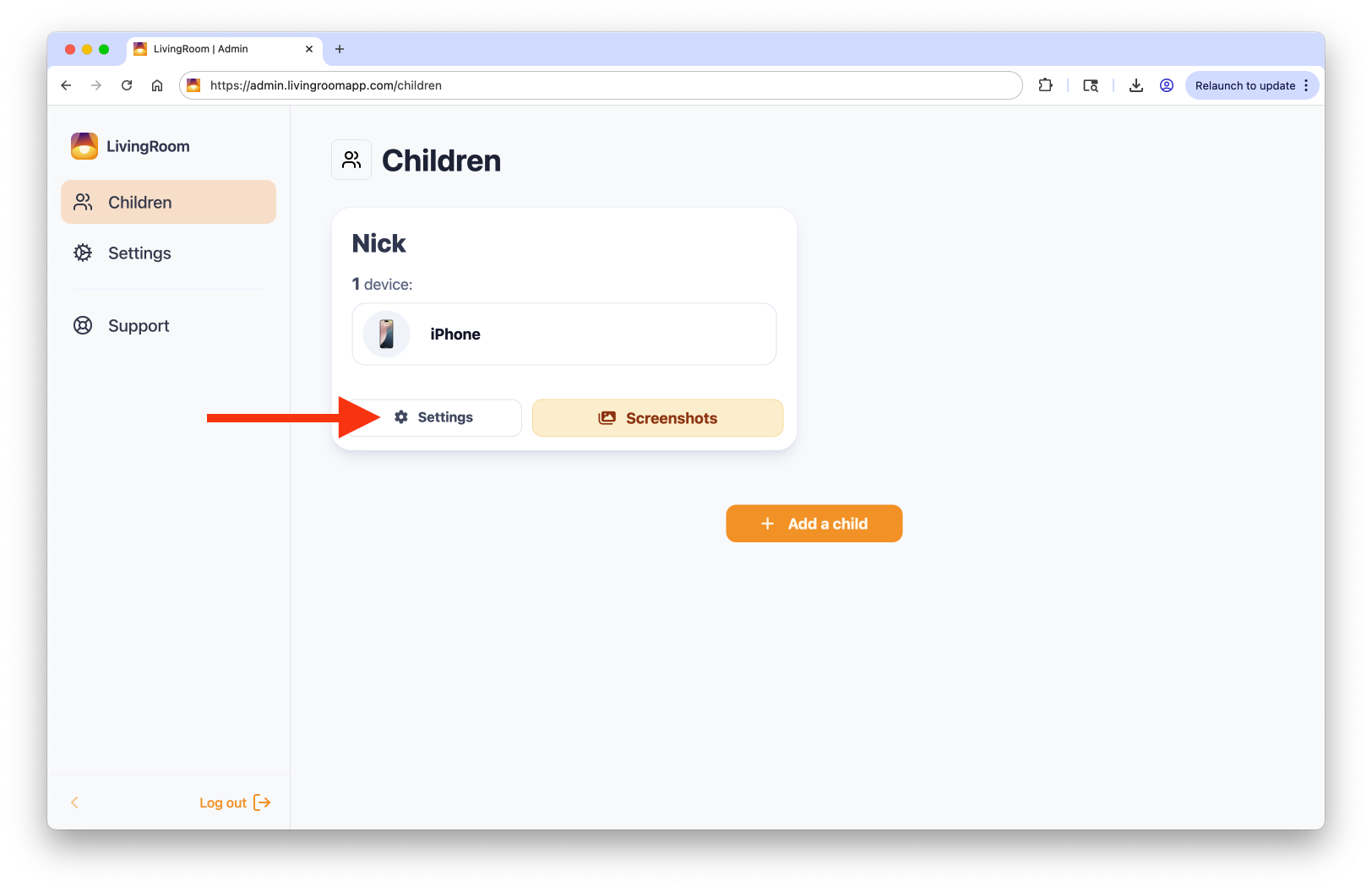
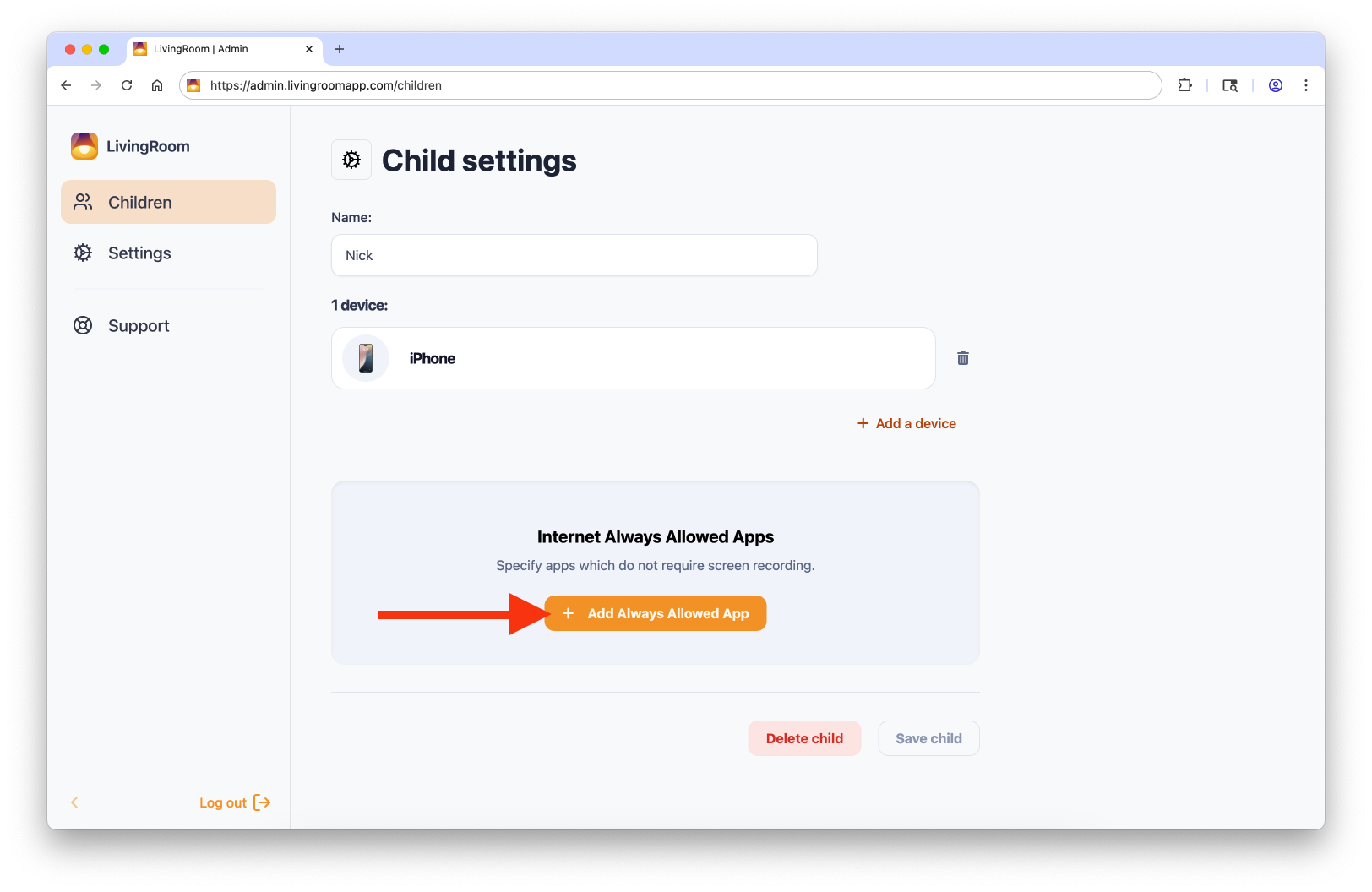
Then click the 'Add Always Allowed App' button.
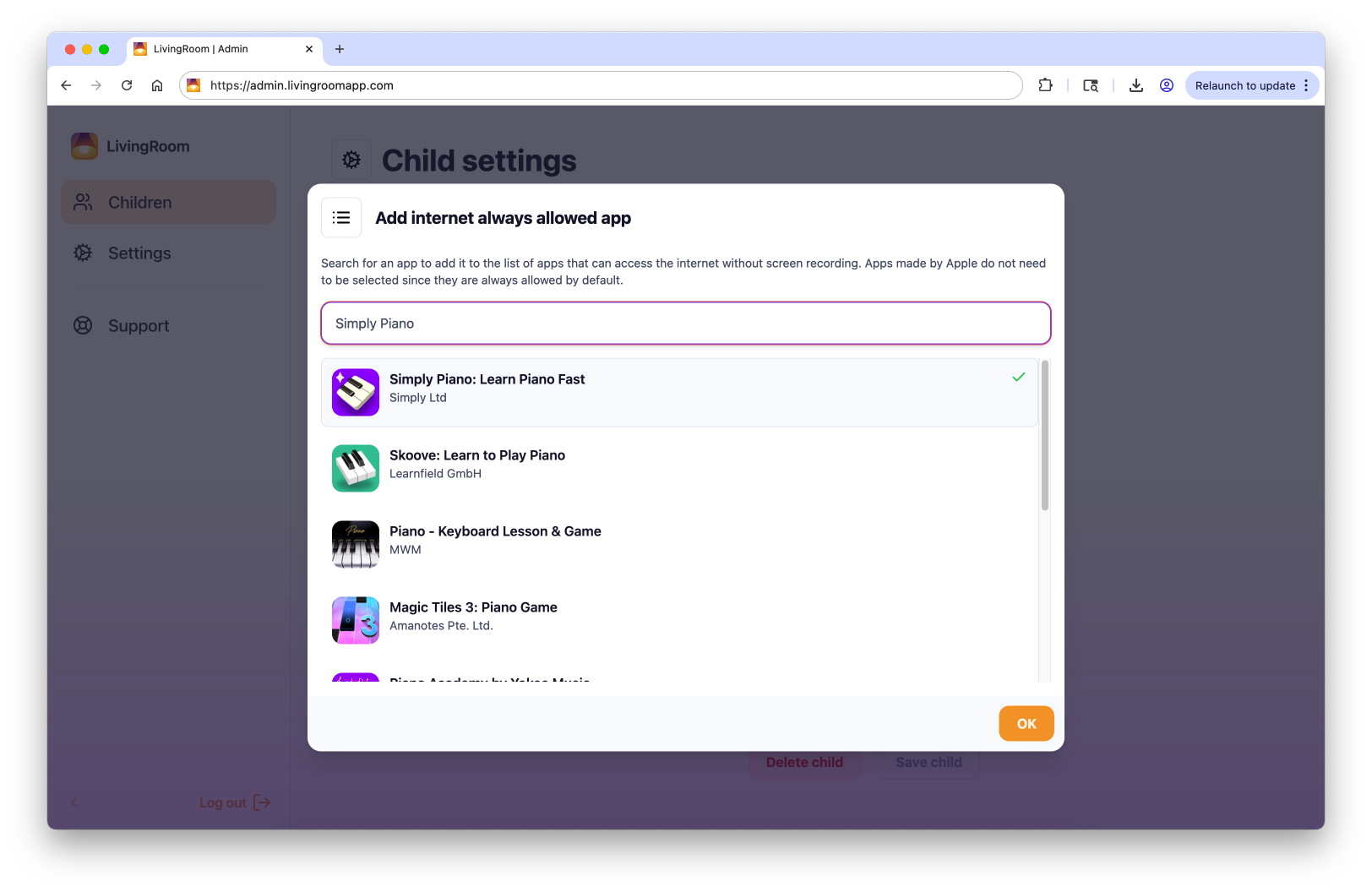
Type the app name in the box to search for it, then tap on the app in the results. Type the name of the next app and continue until you have added all the apps you want to always allow. Then tap OK.
Step 2: Add an app to Always-Allowed Apps on your child's device
When you set always allowed apps from within the LivingRoom app, they are fully compatible with Screen Time restrictions such as Downtime or Time Limits.(Be sure to also remove them from Settings->Screen Time->Always Allowed)
To keep your music playing on apps like Spotify or Apple Music, add them to LivingRoom's Always Allowed list. LivingRoom blocks images and videos in these apps by default, and only loads them when screen recording is active. To display images at all times, set Apple Music or Spotify to Always Allowed on admin.livingroomapp.com.
Apple Music still won't play audio while screen recording is active. Stop recording for music to play. Album art and videos load while recording, or at all times if Apple Music is Always Allowed on the admin dashboard.
- On your child's device, open LivingRoom and tap 'Set Always-Allowed apps':
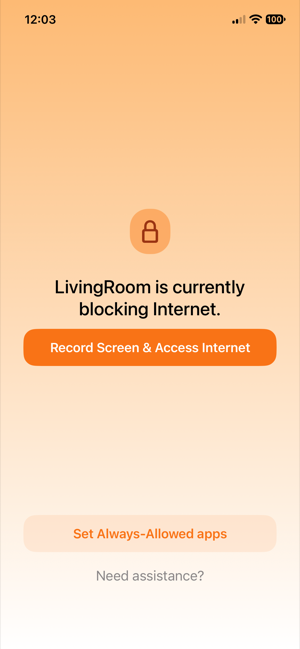 Tap 'Set Always-Allowed apps'
 - Enter the password you use to log in to admin.livingroomapp.com, or tap 'Email a one-time code instead':
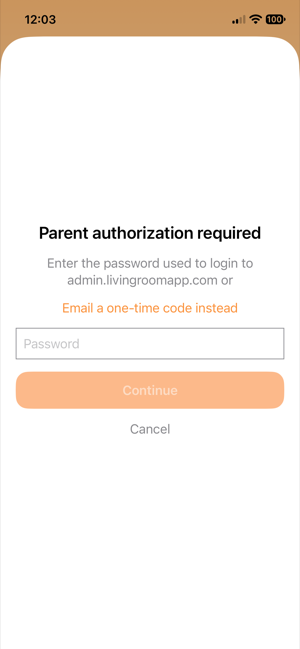 Parent authorization required
 - Select the apps that should be exempted from the screen recording requirement, then tap 'Done'. You can select a maximum of 50 apps.
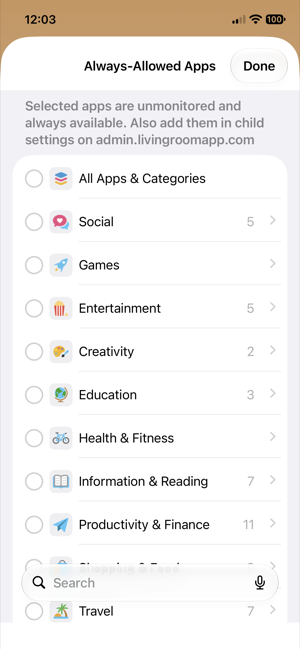 Always-Allowed Apps
 - Tap a category to expand it and see the apps inside:
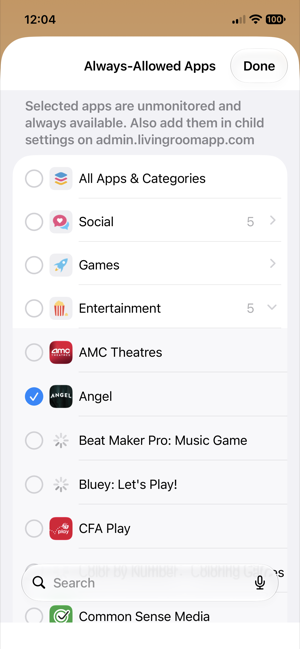 Select individual apps within a category
 - To find a particular app, tap 'Search' and type its name. When finished, tap 'Done'.
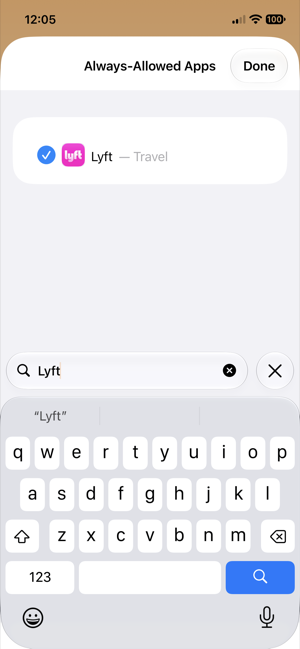 Search for an app

The LivingRoom iOS app helps you protect your kids online with screenshot-based monitoring and nudity blocking.