Getting Started
There are a few things you need to do to get up and running with LivingRoom. This tutorial is meant to walk you through the required steps.
Step 1: Set up your parent account
To start out, if you haven't already created a LivingRoom parent account you'll need to do that first. To create an account click this link and follow the sign-up instructions.
Step 2: Get Connection Code
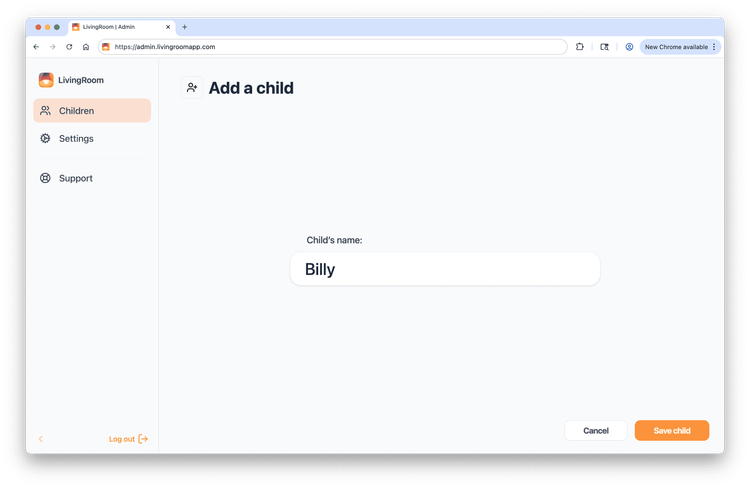
In the parent account dashboard, add a child.
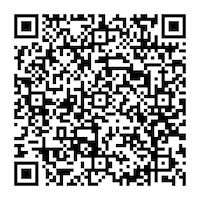
Using your child's iPhone or iPad, scan this QR code to open the LivingRoom for Families App Store page and install it:
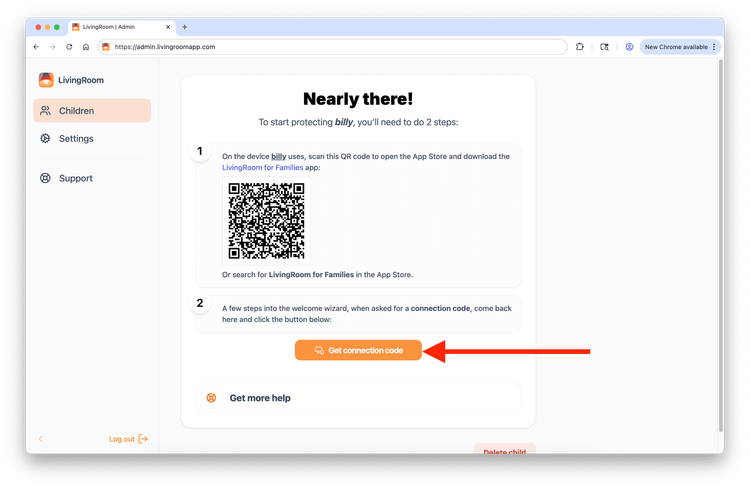
Back in the parent dashboard, click Get connection code to generate the PIN needed to connect your child's device.
Step 3: Connect Child's Device
On your child's iPhone or iPad, go through the first-time onboarding in the app until you get to the Connection Code step. You can enter the connection code from the parent dashboard that you requested in the previous step.
Step 4: Show your Child
Instruct your child that to use their iPhone or iPad, they need to open the LivingRoom app and start the screen recorder.
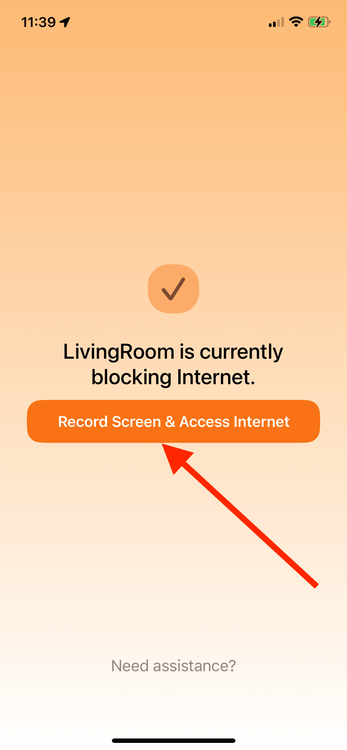
See our tips for launching LivingRoom and recording fast — add it to the Dock or open it with the Action button or Back Tap.
Step 5: Nudity Detection & Blocking
LivingRoom automatically scans the screen for nudity every 2 seconds while recording. If nudity is detected, the screen is shielded and the internet is turned off — no setup required.
Learn more about how nudity detection and blocking works.
Step 6: Bypass Prevention
LivingRoom uses two independent layers of protection — Screen Time app blocking and a content filter that blocks internet connections — to ensure your child cannot bypass screen recording.
Learn more about how bypass prevention works.
Step 7: Customize Always Allowed Apps
By default, the LivingRoom app blocks all apps and only unblocks them when the screen is being recorded. For highly trusted apps, you can exempt them from the screen recording requirement.

The LivingRoom iOS app helps you protect your kids online with screenshot-based monitoring and nudity blocking.